Rummy Safety: Check App Permissions After an Update
Shared phones, family tablets, and public computers create risks that have nothing to do with card strategy. If you use a device that another person can access, spend a minute protecting your account before opening a rummy app or website.
Start with the operating system. Use your own user profile or a guest mode where available, and make sure the device has a screen lock. Do not save passwords in a browser profile that other people use. If an app offers a sign-out option, use it after a session, particularly when the device leaves your possession.
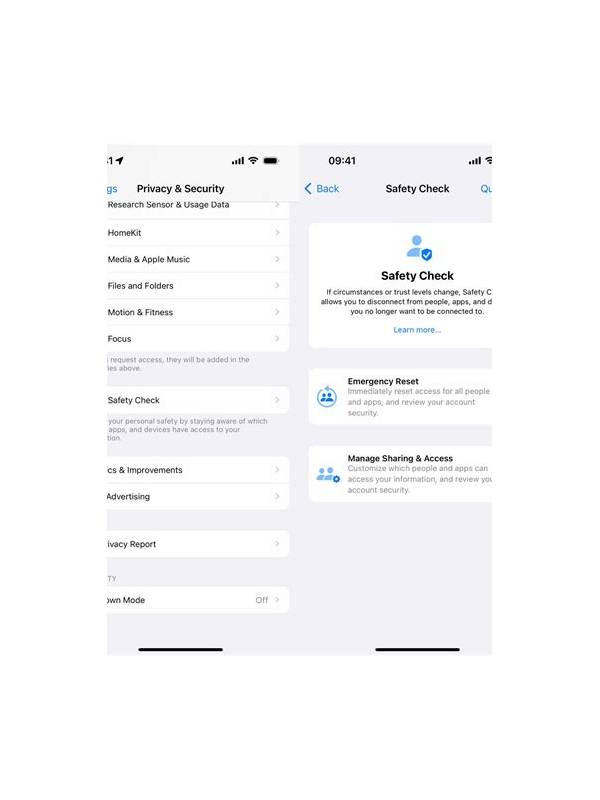
Check the download source and permissions. Install only from a source you can verify, and be cautious if a game asks for access to contacts, text messages, accessibility controls, or files that are unrelated to playing cards. Unusual permission requests deserve a pause and a review of the publisher’s information. Never install a package sent through an unknown message simply because it promises a bonus or faster access.
Protect payment and identity details separately. Avoid entering financial information while connected to a public or shared network you do not trust. Do not let another person watch you type a one-time code, and never forward a verification message to someone claiming to be support. Legitimate support should not need your password or a complete authentication code.
Before leaving, close the app, sign out if possible, and clear any downloaded screenshots that contain account details. If you notice a login alert, changed profile information, or an unfamiliar transaction, stop using the account and contact the service through its verified support channel. Change the password from a trusted device and review active sessions if that feature exists.
Shared-device safety is mostly routine. A separate profile, careful permissions, private authentication, and a proper sign-out remove many avoidable problems. The same checklist also helps when using a borrowed phone while traveling or troubleshooting a device that is not yours.
Recheck permissions after an update as well. Software can add new features or request access that was not needed before. Compare the request with the game’s actual functions, deny anything unrelated, and remove the app if its behavior becomes difficult to explain. A quiet review after updates is easier than investigating an account problem later.
Keep the operating system and security software current, but read update prompts carefully. A genuine update should come through the normal store or system settings, not through an urgent pop-up that asks you to bypass protections. If the device behaves strangely afterward, pause play and investigate from a trusted support page before entering account details again.